ParentSquare

ParentSquare is the One Place for School and Classroom Updates
Woodridge Local Schools uses ParentSquare as our unified communication platform, instantly connecting parents and staff. This unified communications platform is designed to keep parents and guardians informed and encourage greater engagement and connection with our schools. The district uses ParentSquare for emergency and general notifications, including district and school newsletters, communication with teachers and coaches, school closures, and emergency situations. Please note that transportation related changes and updates use the StopFinder app.
ParentSquare Notifications Are Automatic
Families are automatically opted in to receive phone and email notifications. All contact information must be listed correctly in FinalForms to receive emails, texts, and alerts from ParentSquare.
If you would like to update a phone number or email address, please contact your school building’s main office.
Download the ParentSquare mobile app
Send and receive school communications on the go via the ParentSquare mobile app. Click the link or scan the QR code to get started.


-
What is the purpose of this tutorial?
This guide will show you how to set up and activate your ParentSquare account.
______________________________________________________________________________________________________________
Option 1: Create Your Account From a Web Browser
- Go to ParentSquare Login. In the far right under "Register" type in your Email Address or Phone Number that you use for your ProgressBook account. This email address must match the email address on file in ProgressBook. Then, click on "Get Started". (If you are unable to login, please contact the main office of your child’s school.)
- The first time you login, ParentSquare will ask you to verify your contact information. If you need to update your email address, reach out to your child's school site directly. Parent phone numbers can be updated by contacting the main office of your child’s school.
Option 2: Create Your Account By Downloading The Mobile App
- Use the camera on your phone to scan the appropriate QR codes - it takes you directly to the iOS App or Google Play store.
iOS App: Apple Store Google Play store: Google Play Store
- After scanning the QR code, you will be taken to the app store where you will then download the ParentSquare application.
- Once the app has been downloaded, open the app and from there you will login to your ParentSquare account.
- The first time you login, ParentSquare will ask you to verify your contact information. If you need to update your email address, reach out to your child's school site directly. Parent phone numbers must be updated by contacting the main office of your child’s school.
Option 3: Activate Your Account
- Your school may send an invitation email or text with a link to join ParentSquare. Click the provided link to activate the account.
- Below are examples of what these activation links may look like. Users can also register through the ParentSquare app or by using Google single sign on.
Text Activation Example:
- The first time you login, ParentSquare will ask you to verify your contact information. If you need to update your email address or phone number, reach out to your child's school site directly.
-
What is the purpose of this tutorial?
This guide will walk you through how to set your notification preferences. We recommend that one of the first steps you take in the ParentSquare platform is to set up your notification preferences.
ParentSquare allows users to customize their notifications by notification type and select their preferred delivery method for each school and district.
You can set the frequency of notifications for posts. The Instant setting will send all post notifications in real time. The Digest setting sends direct messages, alerts, and time-sensitive posts instantly, but sends all non-time-sensitive posts at the end of the day, reducing the number of notifications you receive daily. Note: we recommend the Digest setting.
Notification types include:
- Urgent Smart Alerts & Notices - urgent alerts, attendance notices, and auto notices marked as critical notices (cannot be disabled).
- General Announcements & Messages - posts, direct messages and reminders.
- School Alerts - smart alerts and other student notices.
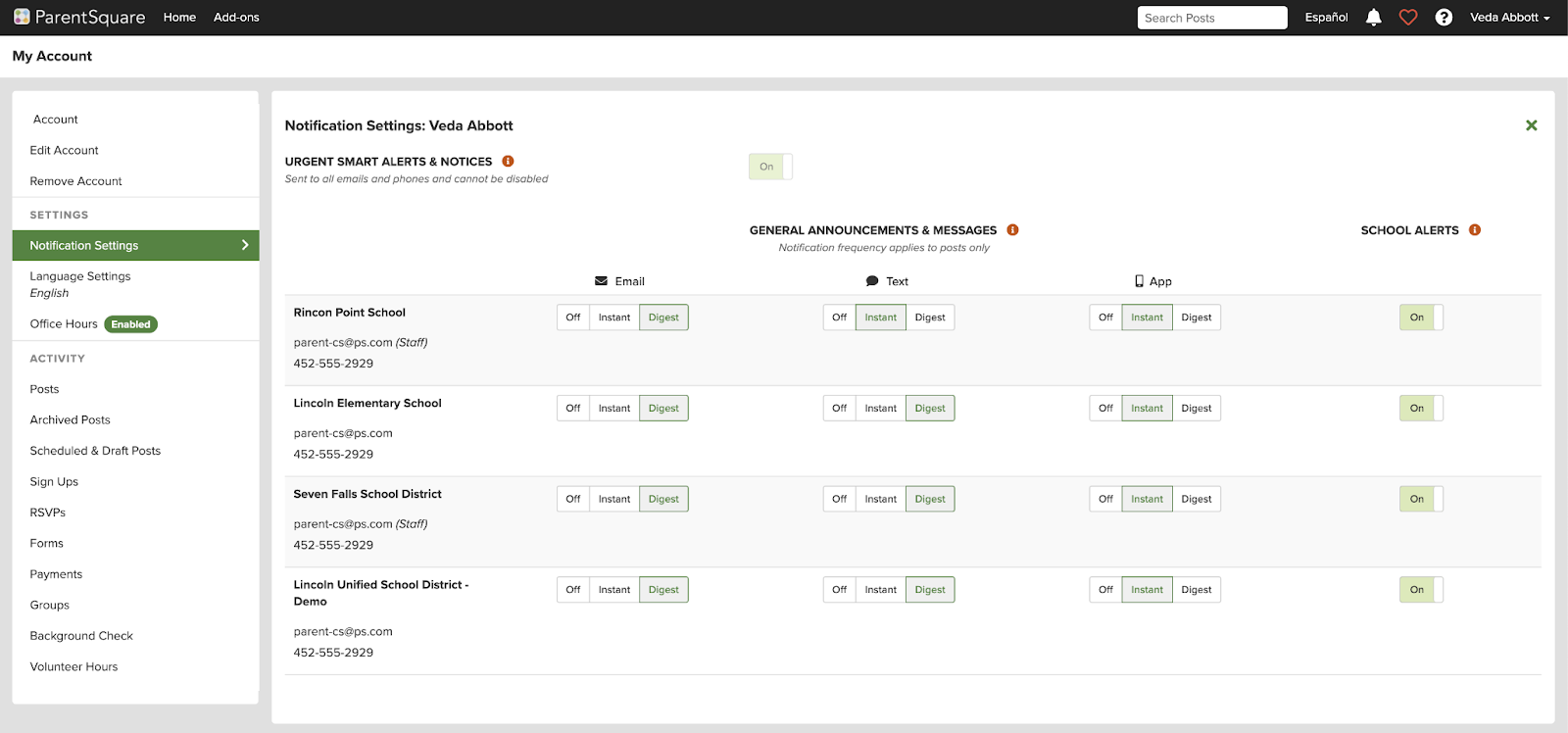
Under General Announcements, you can select which mode(s) will receive notifications, and for posts, how often you want to receive them. Choose Text, Email and/or App Notifications. Then, choose Instant or Digest for post notifications.
- Off: no notifications about posts will be sent to you. Urgent Alerts and Notices will still be sent. School Alerts will still be sent if turned on.
- Instant: you'll receive an email and/or text and/or an app notification every time a notice or message is sent.
- Digest: you'll receive an email and/or text and/or an app notification once a day in the evening with all posts from that day.
Update your notification Settings (using web browser)
Step 1: Login to your ParentSquare account
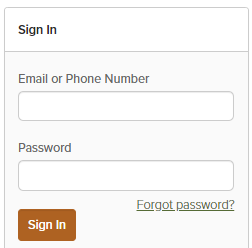
Go to ParentSquare Login and sign in to your account with your email address and password.
If you have not made an account yet, please enter the email address or phone number listed on file with the school district.
Step 2: Navigate to My Account
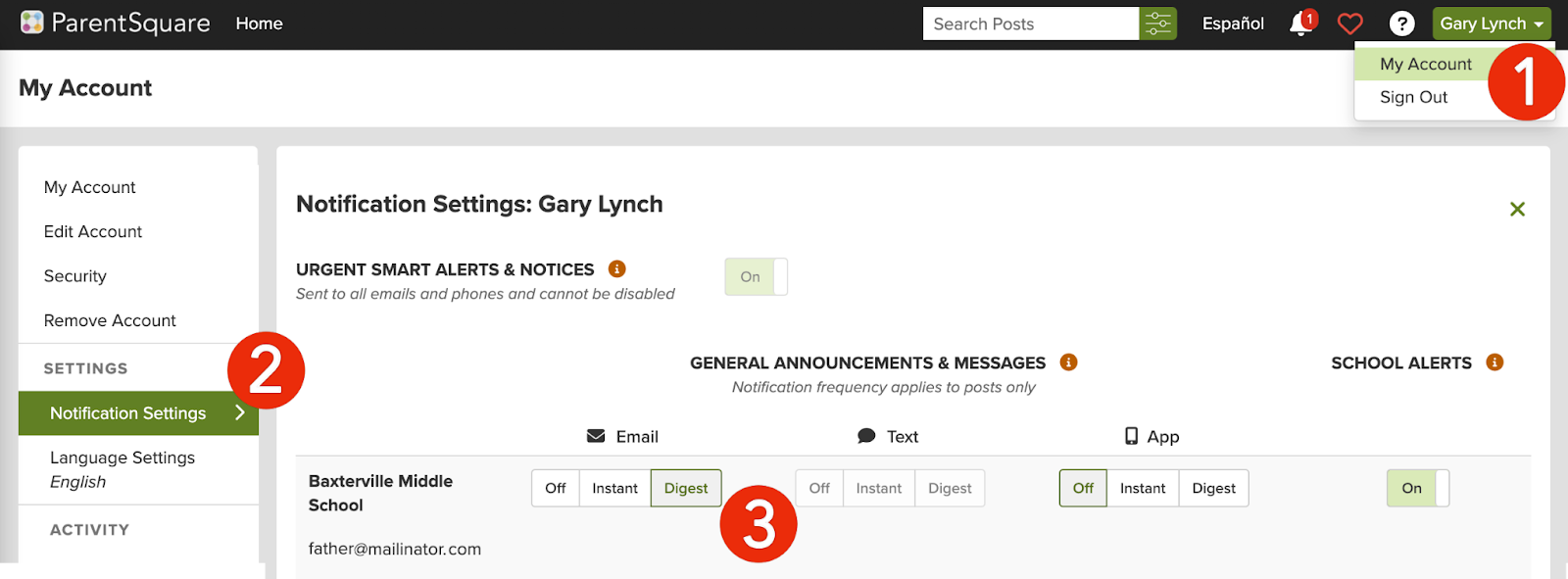
Click Your Name > My Account in the top right of the window.
Step 3: Locate the Notification Settings
Click on Notification Settings from the menu on the left.
Step 4: Choose Your Notification Settings
Choose your preferred Notification Settings for General Announcements & Messages (Off, Instant or Digest) and School Alerts (On or Off). Once you've made selections, future messaging will send based on your preferences.
Instant: This setting will send you notifications as posts, etc. are created.
Digest: This allows you to turn down the noise and receive a notification at the end of the day with links and information related to all of the content shared that day.
School Alerts: Disabling this will turn off all notifications from Irvine Unified School District via the ParentSquare platform, except emergency alerts.
Emergency Alerts: Emergency alerts cannot be disabled.
Step 5: Set Order of Preferred Contacts
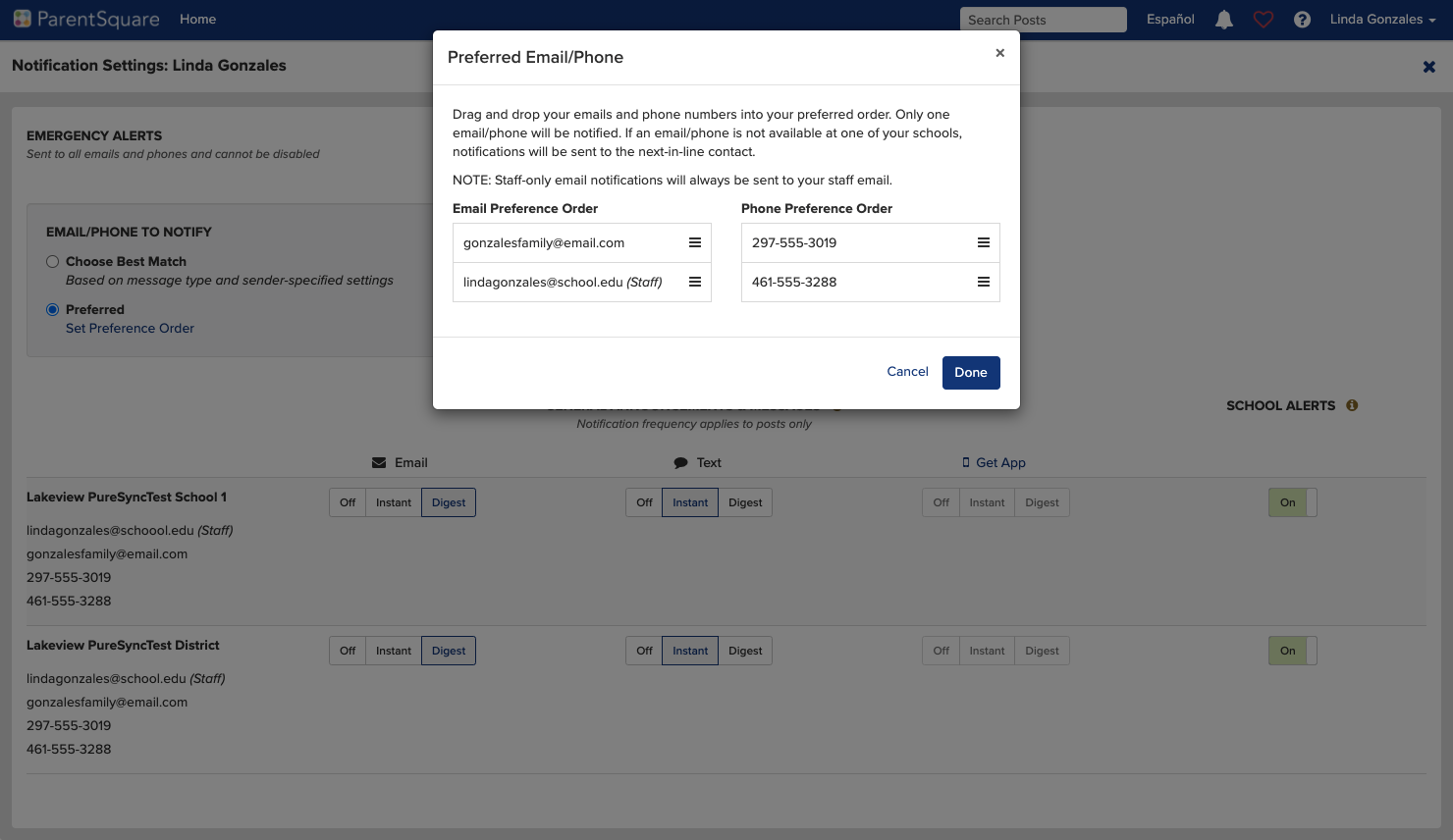
If you have multiple emails or phones listed on your account, set the order of your preferred contacts to receive notifications. Notifications will only be sent to one email and one phone on your account.
Update your notification Settings (using mobile app)
Step 1: Navigate to the Notifications TabFrom home screen tap the triple bar menu at top left. Select Account and then Notifications.
Step 2: Select how you want to be notified
- Turn OFF Custom Settings to use the same notification settings for all schools.
- Turn ON Custom Settings to set different notifications at each school.Toggle on/off to receive Email, Text and/or App Notifications.
Select Instant or Digest for each mode.
Note: In order to receive app notifications on your phone, be sure they are enabled in your phone settings.
-
What is the purpose of this tutorial?
The purpose of this guide is to assist Parent/Guardians with troubleshooting when the are not receiving notifications from ParentSquare.
Step 1: Check your ParentSquare Account
Login to your ParentSquare account. Once logged in, click on your name in the top right, then click on My Account. If corrections to your email address or phone number listed need to be made, please contact the main office staff at your student’s school so the changes can be made.
Step 2: Check your Notification Settings
While in your My Account page, click on Notification Settings on the left side of the screen. If the settings for email, text and/or app notifications are set to Off, please click on Instant or Digest so that you can receive the notifications in the medium selected.
- Instant Notification: Once the site sends out the notification, you will receive it.
- Digest Notification: This allows you to turn down the noise and receive a notification at the end of the day with links and information related to all of the content shared that day.
- School Alerts: Disabling this will turn off all notifications from Woodridge Local School District via the ParentSquare platform, except emergency alerts.
- Emergency Alerts: Emergency alerts cannot be disabled.
Step 3: Email Troubleshooting
Please check folders in your email other than the Inbox - including Spam, Junk, Clutter, for emails from donotreply*@parentsquare.com. It is also recommended that you add the domain ParentSquare.com and the email address, donotreply*@parentsquare.com to your safe senders list in your email client (ex: GMail, Yahoo, aol, Hotmail etc.).
-
What is the purpose of this tutorial?
The purpose of this guide is to show you how to log into StudentSquare using the StudentSquare App.
Your school has created your account using the email and/or phone number on record for you in Google. You can confirm this information my asking your teacher, a media specialist or your school main office staff.
After you download and install the StudentSquare app on your device,
- To begin, you can either enter your school email address or use the Sign In with Google option.
- You can also sign in using the website: https://www.mystudentsquare.com/signin.StudentSquare Login